AutoClaw Cluster Mode Progress Panels vs Tray Stall Flags: Two Ways to See an Agent Is Still Working
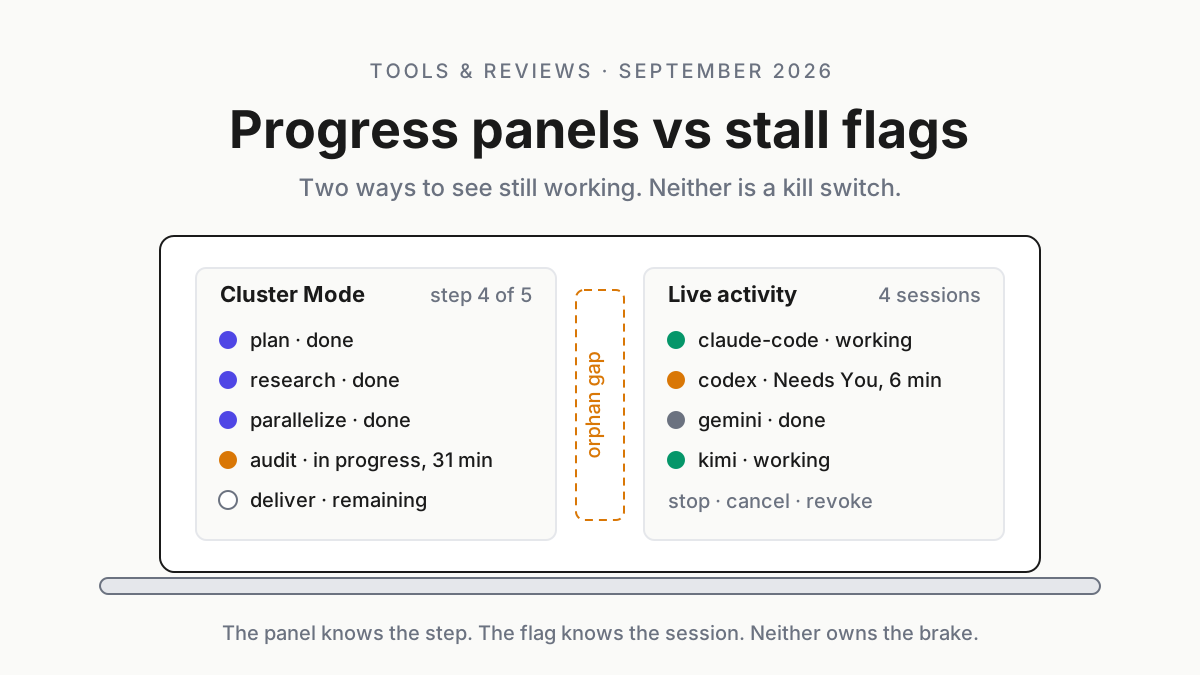
AutoClaw Cluster Mode shows step status in chat; a tray shows stall flags. Two ways to see still working, neither a kill switch. Who owns abort on one laptop.

Go deeper. Build your own.
Minute 31 of an AutoClaw Cluster Mode run, and the progress panel in the chat says research is done, audit is in progress, delivery is remaining. In the Windows tray, a Live activity card has just gone amber on a Claude Code session that stopped writing six minutes ago.
Both signals are true. Both say still working, in two dialects. Neither one will stop anything for you.
AutoClaw Cluster Mode is Z.ai’s team-of-roles mode for its desktop digital employee, and its progress panel is one of the more legible pieces of agent UI shipped this year: step status, in the chat, at a glance. A tray companion’s stall flags and keepalive are the other way to answer the same question, from outside the app, for every CLI on the machine. They look like competitors and they are not. They are two instruments that measure different things, and the interesting problem starts when both run on one laptop and a cluster role goes quiet at step three.
By Tuesday you should be able to say, per loop, who detects an orphan and who owns the abort. That is the whole deliverable. The news is in the next section, the comparison after it, and the runbook (an ownership file, a kill drill, and the honest cell that reads the docs do not say) takes the rest.
AutoClaw Cluster Mode since May 29, 2026: a strict SOP, a progress panel, no documented brake
AutoClaw’s Cluster Mode post, published May 29, 2026, sets the shape. You toggle Agent Cluster Mode to the right of the chat input and send your request. From there the mode enforces a SOP the post summarises as “plan, research, parallelize, audit, deliver”. Against normal mode it “Creates a plan first, lists every step before acting”, “Defaults to parallel dispatch when dimensions can be split”, and “Self-audits before submitting when conclusions/code/actionable advice are involved” (AutoClaw: Cluster Mode).
The panel is the visible part. It shows “which step it’s on, which steps are done, what’s remaining”, and the post sells that as “all at a glance”.
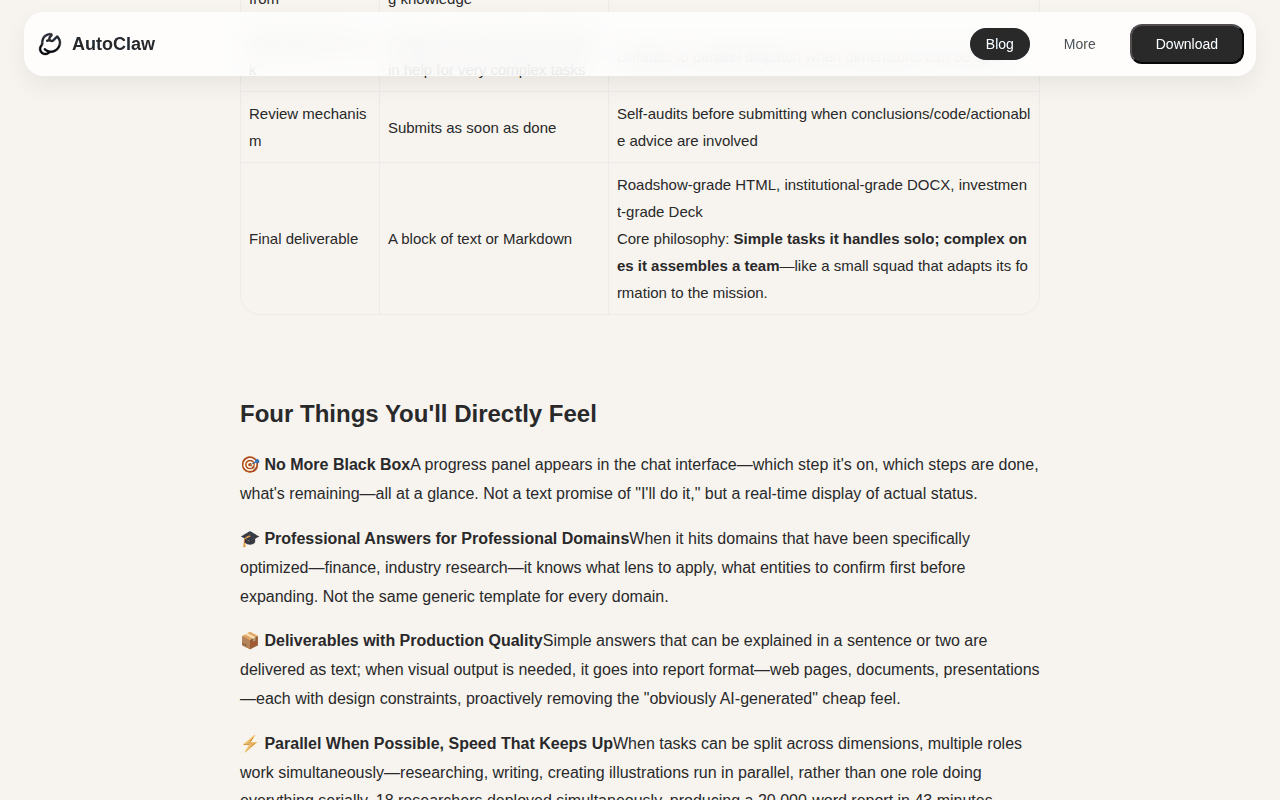 Screenshot: autoclaw.z.ai, “AutoClaw Cluster Mode: Making AI Work Like a Professional Team | AutoClaw Blog” (May 29, 2026), captured Sep 19, 2026.
The team behind the panel is chosen for you. “Even within Cluster Mode, formation is automatically selected based on task complexity”, and the post’s examples run from 2 roles for a single-company valuation in 8 minutes to 18 researchers producing a roughly 20,000-word report in 43 minutes, with a reviewer catching 71 ghost citations. Those are AutoClaw’s own examples on AutoClaw’s own tasks. The Jul 15, 2026 how-to restates the loop in plainer words: “Once enabled, AutoClaw first understands your goal and breaks it down into a plan. It then brings in different roles based on the complexity of the task.” (AutoClaw: how Cluster Mode works).
Three changelog lines finish the picture (AutoClaw changelog). v1.11.0 on Jul 6, 2026: “Tasks can now keep the device awake during runtime to prevent interruptions.” v1.15.3 on Aug 4: “Hover to view detailed model consumption statistics, making cost tracking more transparent.” v1.17.2 on Aug 14: “Removed model restrictions for Design Expert and Cluster Mode.” So a cluster run holds the machine awake, shows its spend on hover, and can run on any model AutoClaw offers, including the GLM-5.3-Flash that the Aug 27 entry describes as “Built for vision, coding, and long-horizon agent tasks”.
What the pages do not say matters as much. There is no cap on roles, no credit cost per role, no timeout, no abort or kill path, and no statement about what happens to a run if you close the app mid-cluster. The only security sentence on the site is the homepage FAQ telling teams to “configure access according to their own security policies” (AutoClaw).
This piece treats each of those as a fact about the pages, not a guess about the product: the docs do not say. The AutoClaw inventory piece covers the rest of the machine-level checklist. This one stays on the panel and the flag.
Acting agents turned still working into a control question
A progress bar over a chatbot was decoration. A progress panel over a formation of roles that the homepage says is “designed for local files, browser tasks, and long-running automation workflows” is a view over money and side effects.
Wake-lock means the laptop will not sleep its way out of a runaway. Automatic formation means the number of roles burning credits was not your decision. And seeing that the run is at audit tells you nothing about whether audit is stuck.
Two questions matter once agents act: is it moving, and can I stop it. The panel answers where the run is. The flag answers whether a session is moving. Neither answers the second question, and this piece does not pretend otherwise.
The interruptible coordinators piece is the general case; this is the desktop instance.
Two dialects of still working: step status versus stall state
| Dimension | Cluster Mode progress panel | Tray stall flags and keepalive |
|---|---|---|
| What it watches | One AutoClaw run’s SOP steps | Every watched CLI session’s activity on the machine |
| Where it shows | Inside the AutoClaw chat | The tray, the first place you look |
| Push or pull | Pull: you have to be in that chat | Push: amber the moment an agent blocks on you |
| Vocabulary | Which step is on, done, remaining | Working, waiting, blocked, done; Needs You |
| Knows why it stopped | Names the step, not the reason | Names the session and how long it has been quiet, not the reason |
| Survives a reboot | The docs do not say | Keepalive brings the watcher back; the agents that died stay dead |
| Spend | Model consumption on hover | Token meters per CLI; quota surprise alerts |
| Can you act from it | The docs do not say | Stop, cancel, revoke are free; Pro adds start, steer, interrupt |
| Sees the other loop | No | No: AutoClaw is not among the apps the tray detects, so its sessions leave no card |
Read down the right column and the tray looks like the winner, which is the wrong reading. The tray sees a session; the panel sees a plan. A cluster run at step three with all 18 roles quiet would show in the tray, at best, as one process that is not writing, and the panel is the only surface on the machine that knows the run has three steps left.
You want both. You just cannot let either of them stand in for the brake.
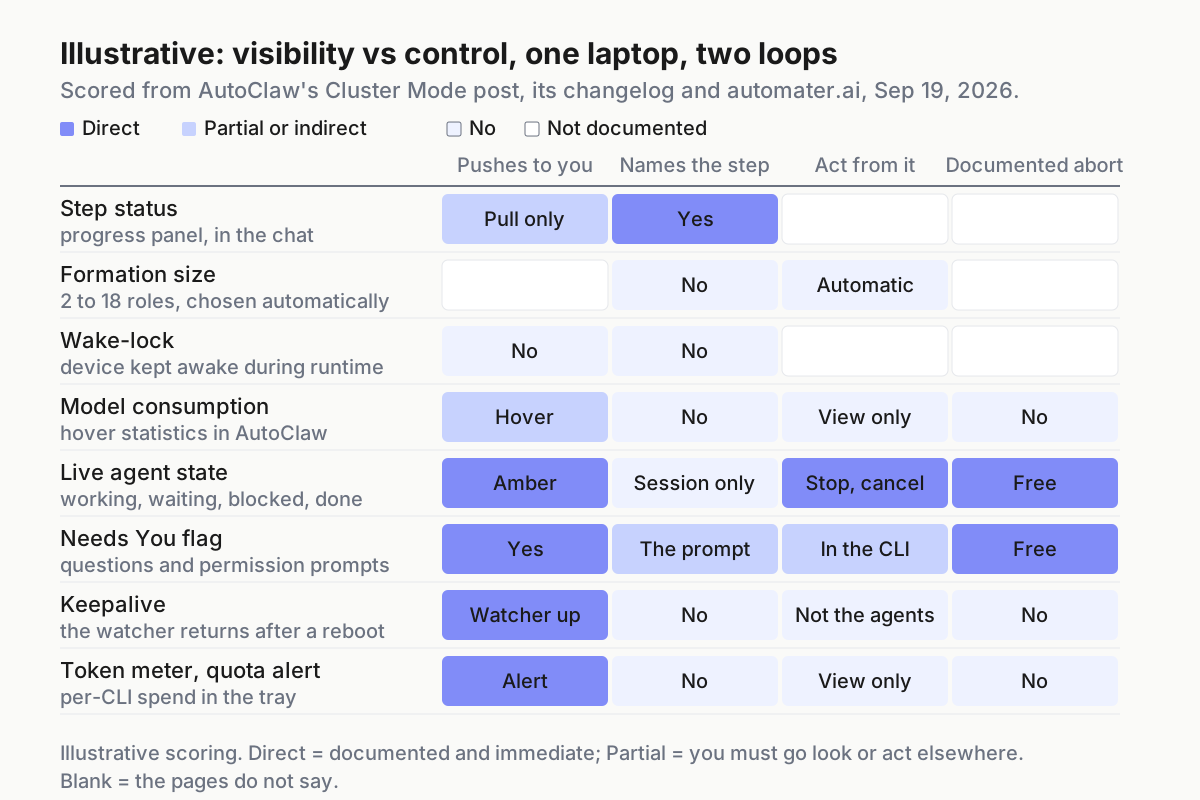 Illustrative: visibility versus control per signal, scored from AutoClaw’s pages and the automater.ai homepage on Sep 19, 2026. Blank cells are things the pages do not document.
On the tray side, the reference implementation for this piece is Automater Lite, a free desktop tray companion for Windows. Its Live activity Home card is the stall-flag surface: “See every agent working, waiting, blocked, or done from the tray.” and “Know the instant an agent stops and is waiting on your answer.” Needs You flags catch questions and permission prompts before they sit until standup; keepalive brings the watcher back after a reboot; the Usage card tracks token spend across every supported CLI and raises quota surprise alerts; the local Library keeps the transcripts; vault redaction scrubs secrets across them (Automater).
The kill path is not a paid feature: “Stopping, cancelling and revoking stay free too.” Pro adds managed sessions (“Start, steer, interrupt and stop agent sessions from the panel.”), pop-outs, diagnostics and the built-in Files, Terminal and Browser.
What it is not: it is not a gateway, it enforces nothing on AutoClaw, and it cannot see inside a cluster run. Automater Lite is free on automater.ai; Pro is $50/year.
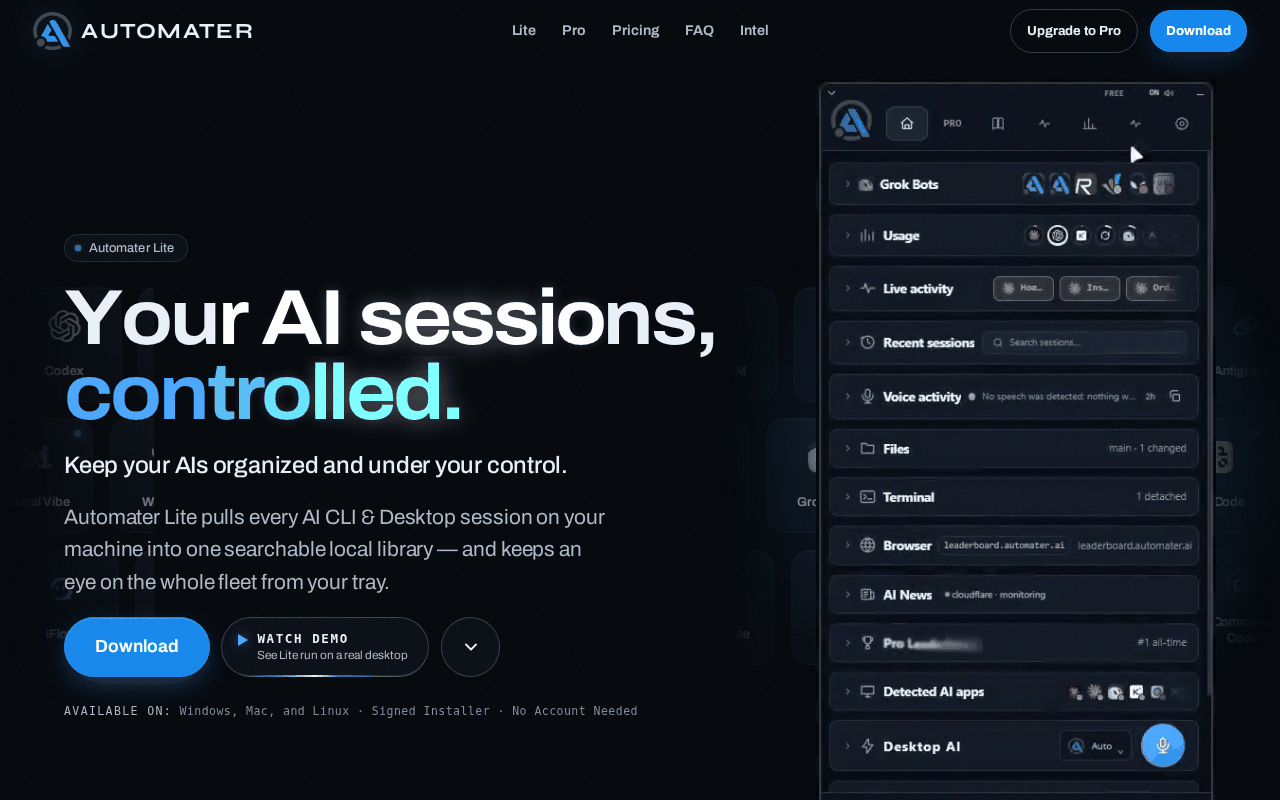 Screenshot: automater.ai, “Automater Lite: Every AI forgets. Automater doesn’t.” (homepage, undated), captured Sep 19, 2026.
Neither one is a kill switch, and the difference is what each admits
The panel admits nothing about stopping because its pages never raise the subject. Formation is automatic, the device stays awake, spend is visible on hover, and the run ends when it delivers. Whether there is a control in the current build that halts a cluster mid-step is not documented; whether closing the app halts the roles or leaves them running is not documented; whether a half-finished run resumes on relaunch is not documented. A vendor that documents a 43-minute, 18-role run owes operators one sentence about the brake, and as of Sep 19, 2026 the sentence is not there.
The flag admits its limits on the homepage. Amber tells you to look; it does not tell you why. Stop, cancel and revoke work on the CLIs the tray watches, and the stall flags and keepalive piece is honest that keepalive resurrects the watcher, not your agents. The tray cannot reach into AutoClaw and stop a role, because the role is not a CLI session; it is a worker inside the AutoClaw app.
For a sense of what a documented brake reads like, Anthropic’s Claude Code Projects docs are the current bar: Stop per thread, a Pause that “stops everything at once”, and a plain statement that background work “isn’t restored” when a cloud VM is reclaimed (Claude Code docs: Projects; Claude Code docs: cloud sessions). Kimi Work’s 3.2.6 release on Sep 7, 2026 says “Users will now be asked to confirm any still-running scheduled tasks before quitting the app” (Kimi Work release notes). Those are the sentences to ask AutoClaw for. The abort-bus piece does the cross-vendor version of this exercise.
One laptop, two loops: decide who owns orphan detection and abort
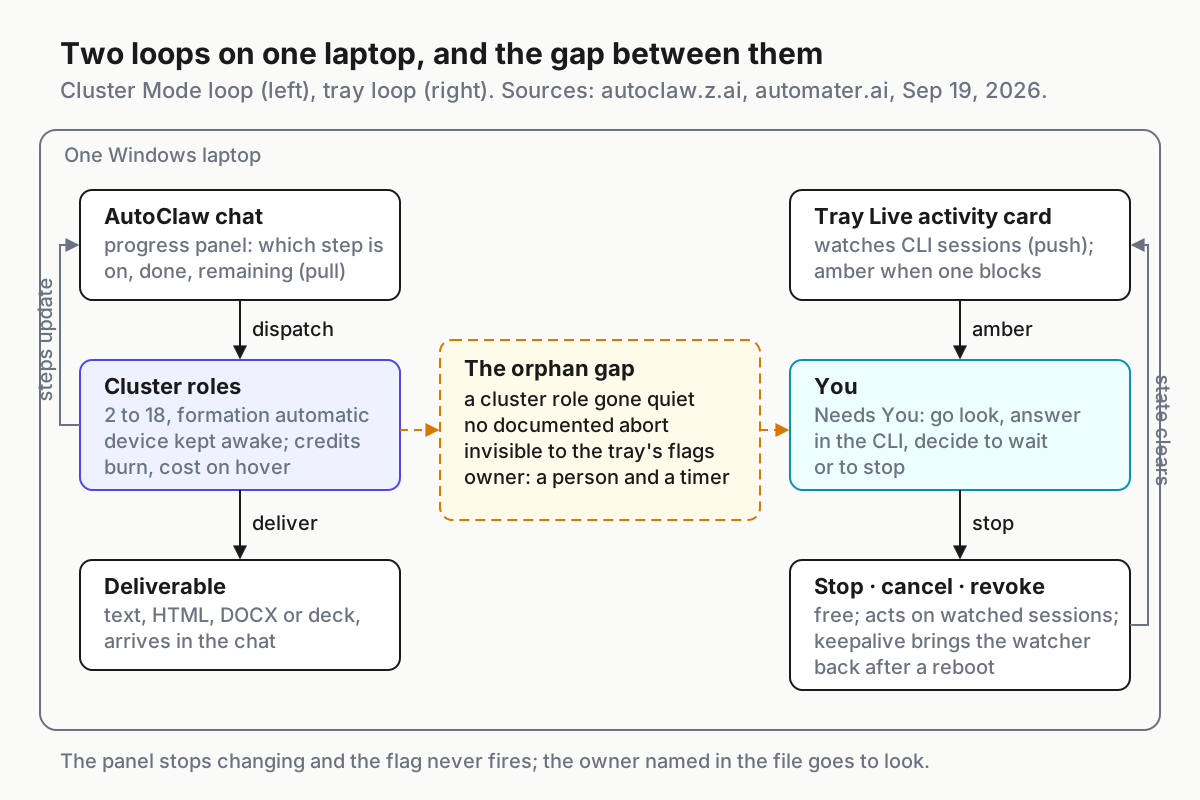 Two loops, one machine. The gap holds every cluster role the panel stops updating about and the tray never saw.
Step 1: draw the two loops and write down what each can see
Loop A is AutoClaw: chat, plan, roles, audit, deliver, with the panel as its only status surface. Loop B is the tray: watch the CLI sessions, flag the ones that stop, hand you the stop button. Write one line per loop stating what it can see, and be literal.
Loop A sees its own steps and nothing else on the machine. Loop B sees processes and transcripts it recognises and nothing inside AutoClaw. The overlap, if any, is the AutoClaw app itself showing up as one detected process, which you will test in step 4 rather than assume.
Step 2: write the ownership file
The file is the deliverable. Illustrative shape:
# still-working.yaml (illustrative; one Windows laptop, Sep 2026)
loops:
  autoclaw_cluster:
    status_surface: chat_progress_panel        # pull; you must be in the chat
    orphan_detection: human_timer              # nobody else can see a stuck step
    orphan_threshold_min: 20                   # see step 3
    abort: docs_do_not_say                     # nothing on autoclaw.z.ai as of 2026-09-19
    fallback: close_app_then_end_task          # what it does to the run: docs_do_not_say
    owner: "@you"
    last_kill_drill: null
  tray_cli_fleet:
    status_surface: live_activity_card         # push; amber + notification
    orphan_detection: stall_flag
    abort: stop_cancel_revoke                  # free tier
    fallback: end_task
    owner: "@you"
    last_kill_drill: null
The point of writing docs_do_not_say into a config file is that it embarrasses you into a drill. A blank cell in a table is easy to ignore; a string in a file you have to read every Tuesday is not.
Step 3: set an orphan threshold per loop
For the tray loop, amber is the threshold and you did not have to pick it. For the cluster loop, nobody pushes anything to you, so pick a step timer from AutoClaw’s own examples: a 2-role valuation in 8 minutes, a 3-role backtest in about 10, a 2-role report with a chart worker in 13, an 18-role research run in 43. Illustratively, a step that has not changed in 20 minutes on a small formation is suspect, and 45 minutes on a large one. Put the number in the file, put a timer on a second monitor or a phone, and treat a panel that stops changing the way you treat an amber flag: go look.
Step 4: run the kill drill on a throwaway task
Do this once, on a task you do not care about, and write the result into last_kill_drill. Toggle Cluster Mode on a trivial research ask. At step two, look for any control in the current build that stops the run, and record what you found, including nothing.
Then close the app. Reopen it. Read what the chat shows, whether the panel resumes, whether the hover statistics moved while the app was closed, and whether the deliverable ever arrived. Whatever you observe is a fact about that build on that day, so date it.
On the tray side, stop one CLI session from the tray and confirm the process is gone. An illustrative check for both, from PowerShell:
# illustrative; adjust the name filter to what Task Manager shows for the AutoClaw process
Get-Process | Where-Object { $_.MainWindowTitle -like "*AutoClaw*" -or $_.ProcessName -like "*claude*" } |
  Select-Object Id, ProcessName, StartTime, CPU
If a process survives the close, that is your orphan, and fallback in the file is the only tool you have for it.
Step 5: decide who notifies whom
The tray notifies you; the panel does not. So for cluster runs, a person owns the timer from step 3, or the chat stays visible on a screen you look at. Do not route AutoClaw’s IM channels into this: results and progress updates flowing back into a Telegram thread are a deliverable feed, not a stall alarm. Write the notifier per loop into the file, and if it is a person, write the name.
Step 6: meter both loops separately and do not add them
The hover statistics count model consumption in AutoClaw’s credits; the tray’s Usage card counts tokens per CLI. They are different dialects and they do not sum, which the credit-versus-token meters piece spells out. For orphan detection the useful trick is simpler: a meter that keeps moving after the panel stopped changing is a stuck role that is still spending, and a meter that stopped while the panel says in progress is a role that died. Either way you go look, and the fan-out metering piece covers what to do when the number of roles is not yours to choose.
Five ways an AutoClaw Cluster Mode run slips past both signals
The silent orphan. Signal: the panel has read audit in progress for longer than your threshold, and no flag anywhere, because nothing pushes. Cause: pull-only status plus no abort path. Fix: the step timer from step 3 and the drill result from step 4.
The app-close gamble. Signal: you closed AutoClaw mid-cluster to free the machine and the hover statistics moved anyway, or the deliverable arrived an hour later. Cause: the docs do not say what a close does to a run, so whatever it did is what it does. Fix: the drill, dated, in the file, and a rule that nobody closes a cluster run without checking the file first.
Wake-lock keeps the wrong thing alive. Signal: a laptop that would not sleep overnight and a credit balance lower in the morning. Cause: “Tasks can now keep the device awake during runtime” is a feature for long runs, and a runaway is a long run. Fix: the threshold and the kill drill; the wake-lock is not the bug, the missing brake is.
Keepalive hides the wrong absence. Signal: after a reboot the tray is up, flags are quiet, and the AutoClaw chat shows a panel frozen at step three. Cause: keepalive brought the watcher back, not the run, and the pages do not say whether a run resumes. Fix: treat a post-reboot panel as an orphan until the drill says otherwise.
Two meters, one bill you cannot reconcile. Signal: credits down, tokens flat, or the reverse. Cause: two loops, two dialects. Fix: step 6, and stop trying to add them.
The operating layer owns the gap between panels
Every vendor’s status surface tells you about the work that vendor runs, from inside that vendor’s window. AutoClaw’s panel is a good one. It is still one window.
The desk-level operating layer’s job is the gap between windows: who is running, who is stuck, who stops it, what it cost, in one place and one vocabulary, which is the argument the agentic ops thesis makes at length and the one-boss piece makes about coordinators specifically. The card operating metaphor piece gives that vocabulary three nouns; in it, a progress panel is a process card with no kill owner, and a Needs You flag is a gate.
Until AutoClaw’s pages document a brake, the owner of the cluster loop’s abort is a person with a timer and a Task Manager. Write that down. It is less elegant than a panel and considerably more honest.
FAQ: AutoClaw Cluster Mode and stall flags
What does the AutoClaw Cluster Mode progress panel show?
AutoClaw’s May 29, 2026 post says the panel appears in the chat and shows which step the run is on, which steps are done and what remains, following the plan, research, parallelize, audit, deliver sequence. The pages document no stop control on it, no role count you choose, and no timeout.
Can a tray stall flag stop an AutoClaw Cluster Mode run?
No. A stall flag marks a watched CLI session that has gone quiet, and the tray’s stop, cancel and revoke act on those sessions. A cluster role is a worker inside the AutoClaw app, not a CLI session, so the flag cannot see it and the stop cannot reach it. A person owns that kill.
What happens if I close AutoClaw during a Cluster Mode run?
The docs do not say. AutoClaw’s pages describe no abort path, no timeout, and nothing about a run’s fate when the app closes or the machine reboots. Run the kill drill on a throwaway task, record what the panel, the hover statistics and the deliverable did on relaunch, and date the result.
Sources
- AutoClaw blog: the Cluster Mode post (May 29, 2026)
- AutoClaw blog: the Cluster Mode how-to (Jul 15, 2026)
- AutoClaw changelog: v1.11.0 (2026-07-06), v1.15.3 (2026-08-04), v1.17.2 (2026-08-14), v1.17.8 (2026-08-27)
- AutoClaw homepage: FAQ
- Automater homepage: Live activity, Needs You, Pro
- Claude Code docs: Let Claude coordinate ongoing work with Projects
- Claude Code docs: Use Claude Code in the cloud
- Kimi Work release notes: 3.2.6 (2026-09-07)