Kimi Work Scheduled Tasks Are Unattended Desktop Cron: Tier Them Like a Headless Run
Kimi Work scheduled tasks turn a live widget into unattended desktop cron. Tier it like a headless run: allowlists, no prod creds, run records, a human gate.

Go deeper. Build your own.
At 07:00 the investor dashboard refreshes itself: three live widgets run their bound tasks, pull fresh prices through a plugin and rewrite their numbers while the screen is dark and nobody is in the room. That is Kimi Work scheduled tasks doing what they were built to do, and it is also cron. Cron on a personal machine, under a personal login, with whatever plugins that login has installed, and no terminal to press Ctrl-C in.
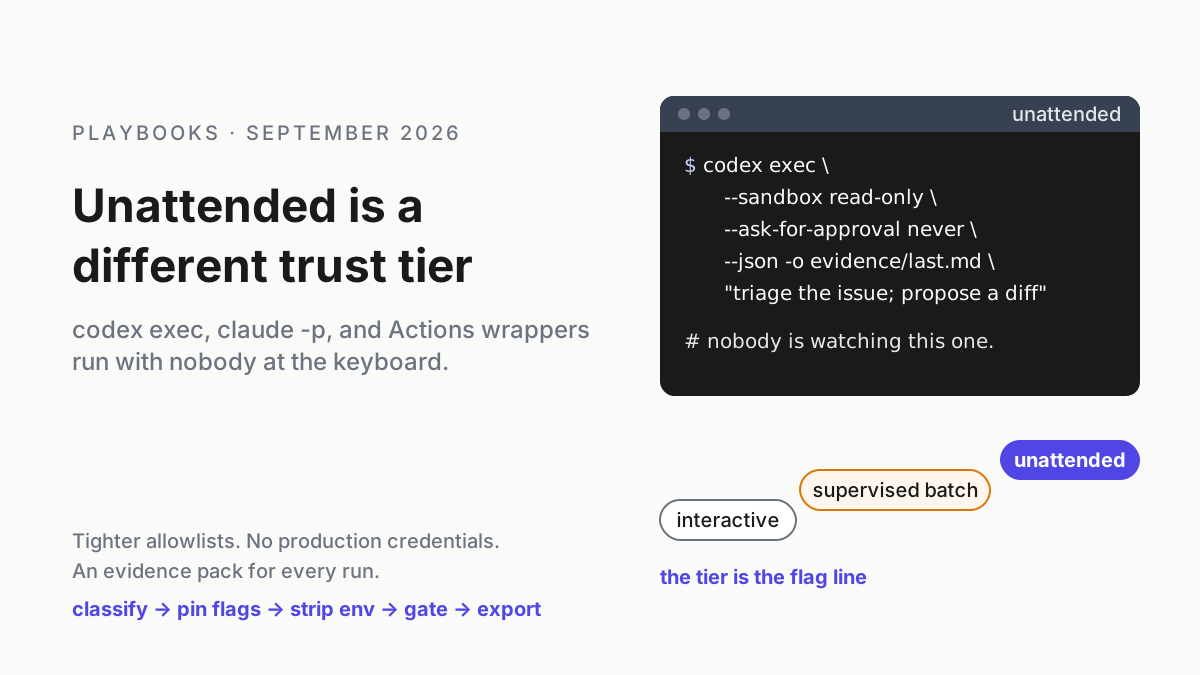
The earlier headless piece drew the line for codex exec and claude -p: an unattended run is a different trust tier from an interactive one, with its own flag line, its own allowlists, and an evidence pack it must leave behind. A live widget bound to a schedule belongs in that tier. It arrived with a nicer face, inside an app sold to knowledge workers rather than platform engineers, which is why nobody on your team has written its tier down.
This runbook does that: an inventory column, a permission rule, a plugin allowlist per task, a run record you keep instead of the ten the vendor keeps, a human gate for schedules that can touch the world, and a written policy for the three ways a desktop cron job stops without telling you.
What Kimi’s own pages say about Kimi Work scheduled tasks, dated
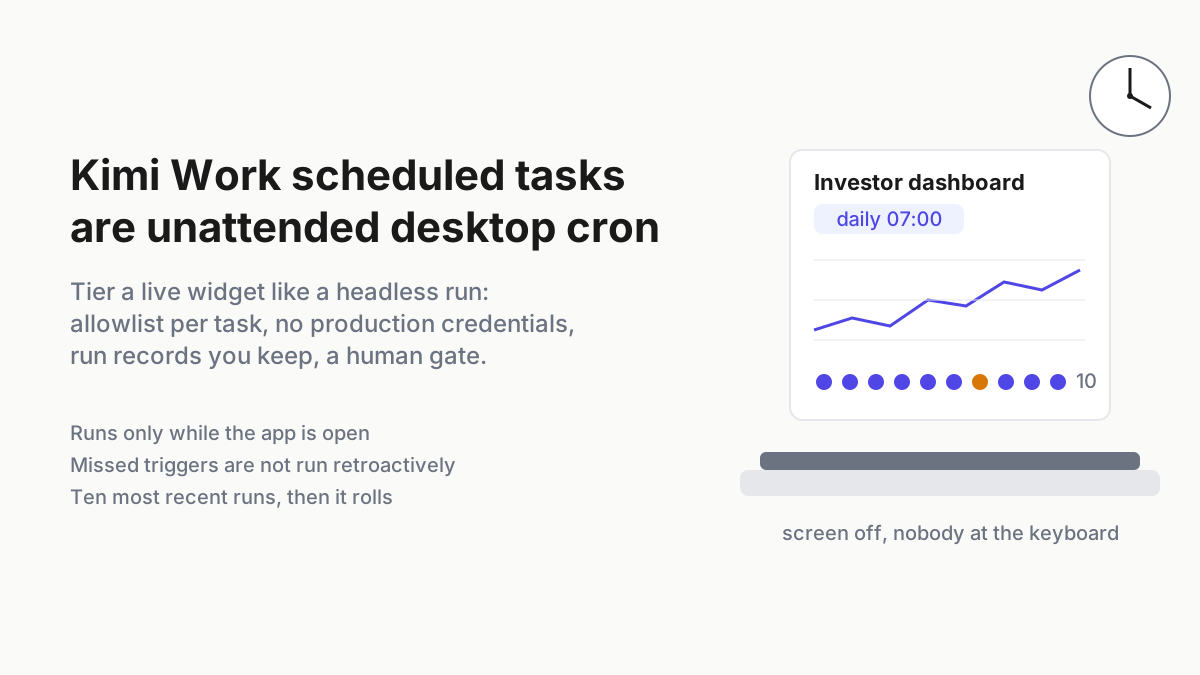
Kimi Work launched on Jun 3, 2026 and the help pages still label it Beta; the Work-mode sidebar carries a Scheduled Tasks entry beside Dashboard, Plugins and Skills (Kimi Work overview). The FAQ describes the feature in one sentence: “Scheduled tasks let Kimi automatically run a fixed task at a set time — on a daily, weekly, monthly, or one-time (never repeat) schedule” (Kimi Work FAQ). The next paragraph is the one to pin above the desk: “On Kimi Work desktop, scheduled tasks run locally and only execute while the app is open. Triggers missed while your computer is asleep or shut down, or while the app is closed, are not run retroactively the next time it opens.”
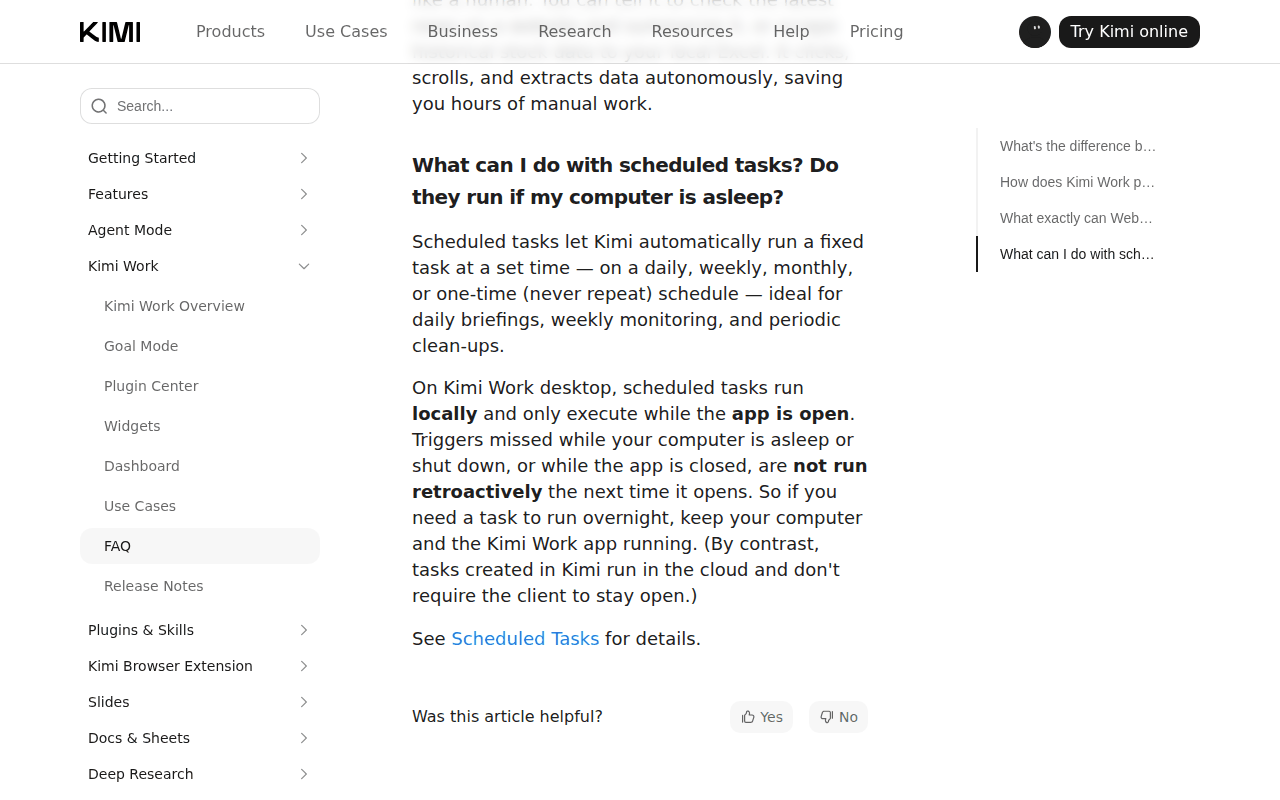 Screenshot: kimi.ai, “Kimi Work FAQ - Kimi Help Center” (undated), captured Sep 19, 2026.
The widget pages tie the schedule to the dashboard: a “Live Widget: a widget bound to a widget task, whose content updates automatically with each run of the task.” (Kimi Work widgets). From the dashboard you can, “For a live widget, manage its bound widget task: view the task name and description, toggle it on or off, and check the 10 most recent runs (run time and status);” (Kimi Work dashboard). Ten runs, time and status. That is the whole vendor-side audit trail, and it rolls.
The help pages describe widget tasks and the Scheduled Tasks page separately and never say outright that the FAQ’s app-open rule covers a widget task. Both live in the same desktop client, so assume it does, and treat a scheduled widget task and a Scheduled Tasks entry as one tier.
Three release notes from the last two weeks describe the failure modes better than a threat model would. 3.2.6 (2026-09-07): “Users will now be asked to confirm any still-running scheduled tasks before quitting the app”. 3.2.7 (2026-09-11): “Fixed an issue where the scheduled tasks page froze when credits ran out”. 3.2.9 (2026-09-14): “New power mode option “Keep Awake After Screen Off”: the screen can turn off while the system keeps running, so remote control and background tasks are not interrupted“ (Kimi Work release notes).
AutoClaw’s changelog tells the same story from the other desktop, with “Tasks can now keep the device awake during runtime to prevent interruptions.” in v1.11.0 (2026-07-06) and “Improved scheduled task reliability” in v1.16.2 (2026-08-10) (AutoClaw changelog). Two digital employees, one summer, the same fight with sleep.
Why a live widget sits in the headless tier
The headless trust-tier playbook listed what changes when the human leaves the loop. Most of it carries straight over to a widget on a schedule.
Nobody is watching. A run at 07:00 has the same audience as a cron job on a runner: the log, later.
The approval path has nobody on the other end. The docs do not say what happens to a permission prompt raised by a scheduled run when nobody answers; either the run stalls, or someone set Fully automatic to make the stalls go away.
Input provenance is wider than it looks. No stranger types into a widget, but “Widgets can connect to local data or external plugins for continuous updates” (Kimi Work widgets), and a shared spreadsheet, a plugin feed and a mailbox are all writable by other people.
Blast radius is permission level, times plugins, times hours until someone looks. A dashboard refreshed at 07:00 and read at 09:30 has two and a half hours of unobserved effect, times up to 20 widgets per dashboard and two dashboards per login.
Three tiers, then. Interactive chat: you typed it, you answer the prompts. Supervised dashboard: a person clicks Refresh and reads before anything depends on it. Unattended live widget: a bound task on a schedule, running whether or not anyone is at the machine.
Step 1: inventory every bound task, with the tier as a column
The help pages describe no export for the scheduled-task list, and the dashboard shows a task’s name, description, toggle and ten runs. So the inventory is yours: one row per bound widget task or Scheduled Tasks entry, per machine, per login. The shape below is an operator file, not a Kimi format.
# widget-tasks.yaml: illustrative operator inventory, one row per bound task
- id: wt-014
  machine: rw-laptop-02          # the desktop the task runs on; it runs nowhere else
  login: r.okafor
  app: kimi-work 3.2.11
  widget: "Investor dashboard / holdings"
  schedule: daily 07:00 local
  trigger: schedule               # schedule | event
  tier: unattended                # interactive | supervised | unattended
  permission_level: default       # never fully-automatic; a prompt here is a tripwire
  plugins: [market-data-feed]     # the task's allowlist, not the login's install list
  data_paths: ["~/Work/markets/holdings.csv"]
  external_effects: none          # none | message | file-outside-workspace | deploy | spend
  credit_floor_alert: 20%
  owner: r.okafor
  reviewed: 2026-09-19
Two columns do the work. trigger decides whether the row is unattended at all: anything on a schedule or an event is, however attentive its owner means to be. external_effects decides how strict the rest gets; for most widgets the honest answer is none, which makes the exceptions visible.
A task that can deploy is a different animal from one that redraws a chart, and 3.2.7 shipped a plugin that does the first: “Added a website deployment plugin: once installed, deploy local website projects to the cloud in one step” (release notes). One step is exactly how many a scheduled task has.
Step 2: pin the permission level per tier, and treat Fully automatic as a tier violation
The 3.2.2 note (2026-08-26) reads: “Added a “Default” option for run permissions: three permission levels are now available globally — “Default”, “Manual approval”, and “Fully automatic”“ (release notes). The FAQ defines them: Default “prompts you for explicit authorization before sensitive operations such as modifying, overwriting, or running code on your local files”; Manual approval asks before acting; Fully automatic runs without asking (Kimi Work FAQ). The same page carries the risk text for the third level: “With the “Fully automatic” permission enabled, the AI will directly read and write files, execute code, and modify system configurations … This may result in: Files being overwritten, deleted by mistake, or corrupted; System configurations being changed, causing software malfunctions; Disk encryption, partition, or firmware changes, resulting in a restricted or unbootable device.“
Read that as a tier document: the level exists, it can leave the machine unbootable, and “You shall bear the results of operations performed based on your authorization.” The help pages describe no admin lock or allowlist for it, so the rule lives in your inventory and your weekly check.
| Control | Interactive chat | Supervised dashboard | Unattended live widget |
|---|---|---|---|
| Permission level | Default, with you answering | Default; Manual approval for anything touching files | Default, pinned; every prompt it raises is a tripwire |
| Fully automatic | Never on a machine with work data | Never | A tier violation; page the owner |
| Plugins | Whatever the login installed | The widget’s list, reviewed | The task’s allowlist only; browser control off |
| Credentials in reach | Your scoped login | Read-only exports in the working directory | No production credentials on the machine |
| Run records | Chat transcript | Ten runs in the dashboard | Ten in the dashboard, all of them in your log |
| Consequential output | You decide, live | You read, then act | A person approves outside the widget first |
| Quit and sleep | Your problem | Documented | Keep Awake as a fleet default; quit prompt always answered |
| Credits | Watch the meter | Watch the meter | Floor alert, set well above zero |
Why Default and not Manual approval: the FAQ says that under Manual approval “nothing happens without your consent”, so an unattended task set that way can do nothing at all. Default lets routine work run and prompts before sensitive operations, which on an unattended task means a prompt with nobody there and a run that may not finish. That is the correct outcome.
A job that tried to overwrite a file outside its row should show up as a run that stalled or failed, not one that succeeded because someone switched to Fully automatic. I would rather explain a stalled widget on Monday than a rewritten spreadsheet on Sunday.
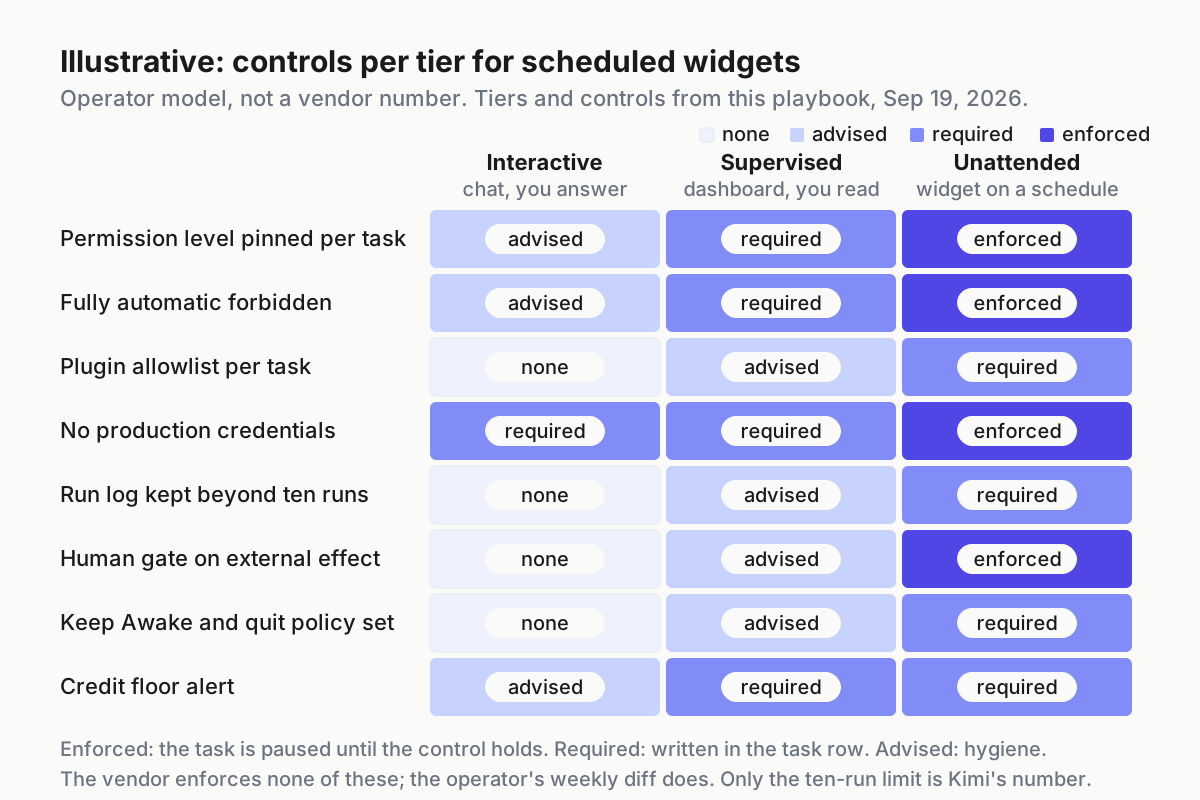 Illustrative. “Enforced” means the task is paused until the control holds; the vendor enforces none of these, so the operator’s weekly diff does.
Step 3: allowlist plugins and data per task, and keep production credentials off the desktop
The resource page says it plainly: “Plugins extend Kimi Work with access to external data and third-party services. … Features and authorization requirements vary by plugin, so review the requested access before using one.” (Kimi Work Dashboard resource page). Reviewing at install time is the interactive tier’s control. At the unattended tier the review is per task: which plugins this task may call.
Three defaults matter. Since 3.2.0, real-browser control lives in a plugin that “is off by default and can be enabled in Settings”, as is Chrome cookie import on Mac (release notes). Since 3.2.2, “Agent control of the built-in browser is now on by default”, and “each conversation now gets its own working directory”.
Browser control stays off on any machine that runs unattended tasks. Treat the working directory as the fence: the row’s data_paths sit inside it, and the credential-shaped things in your home folder do not. The notes do not say the directory confines what a task can read, so the fence is your policy, checked weekly.
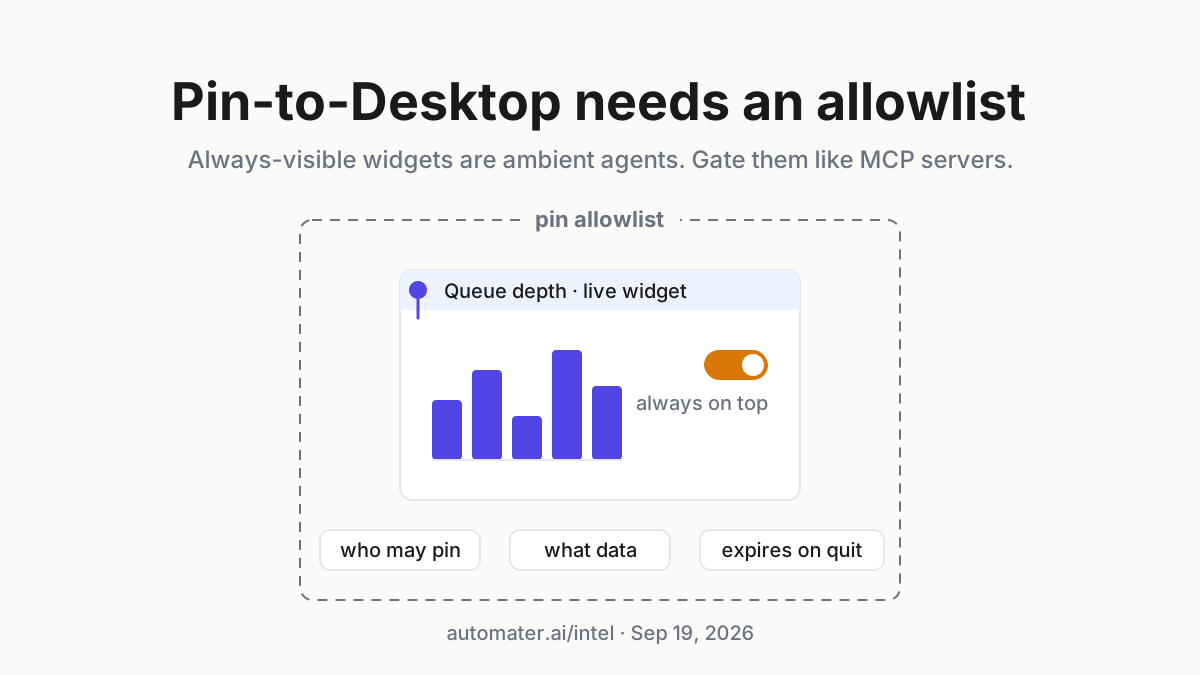
No production credentials on a machine that runs scheduled widgets, at any permission level. If a widget needs data from a system with a login, the data arrives as a read-only export in the working directory, produced by something else, on a token the widget never sees. A plugin holding an OAuth grant to a brokerage or a deploy target is, on a schedule, an unattended job with production access, and no safer for having a chart on top. The pin-to-desktop allowlist is the sibling for what a widget may display; this row is what it may reach.
Step 4: Kimi keeps ten runs; you keep all of them
“10 most recent runs (run time and status)” is a rolling window. A daily task loses its first run on day eleven; an event-triggered one that fires often can roll through ten in a morning. The help pages show no export, no per-run transcript and no cost per run. So the operator’s log is the record, starting the day the task is bound.
{"ts":"2026-09-19T07:00:41+02:00","task":"wt-014","machine":"rw-laptop-02","login":"r.okafor","tier":"unattended","permission":"default","status":"ok","duration_s":38,"plugins_called":["market-data-feed"],"files_read":["~/Work/markets/holdings.csv"],"files_written":[],"prompts_raised":0,"credits_before":412,"credits_after":397,"widget_hash":"sha256:…"}Illustrative shape; the fields are what the dashboard shows plus what you can observe around it. prompts_raised matters most: at the unattended tier it should be zero, and anything else means the task reached for a sensitive operation its row did not plan for. credits_before and credits_after come from wherever your plan shows the balance; the credit-versus-token dialect piece covers why a desktop meter needs its own column. widget_hash ties a changed number to a run rather than an argument.
Collect it by hand for the first fortnight if you must. Fleet replay is where those lines earn their keep when a pinned number turns out to have been wrong for six days.
Step 5: a human gate on every schedule that can touch the world
Most widgets redraw. Some deploy, message or spend, and a schedule turns a one-time decision into a standing one. The gate is simple to describe and easy to get wrong: the scheduled task may produce a proposal, and a named person approves it, outside the widget, before the effect happens.
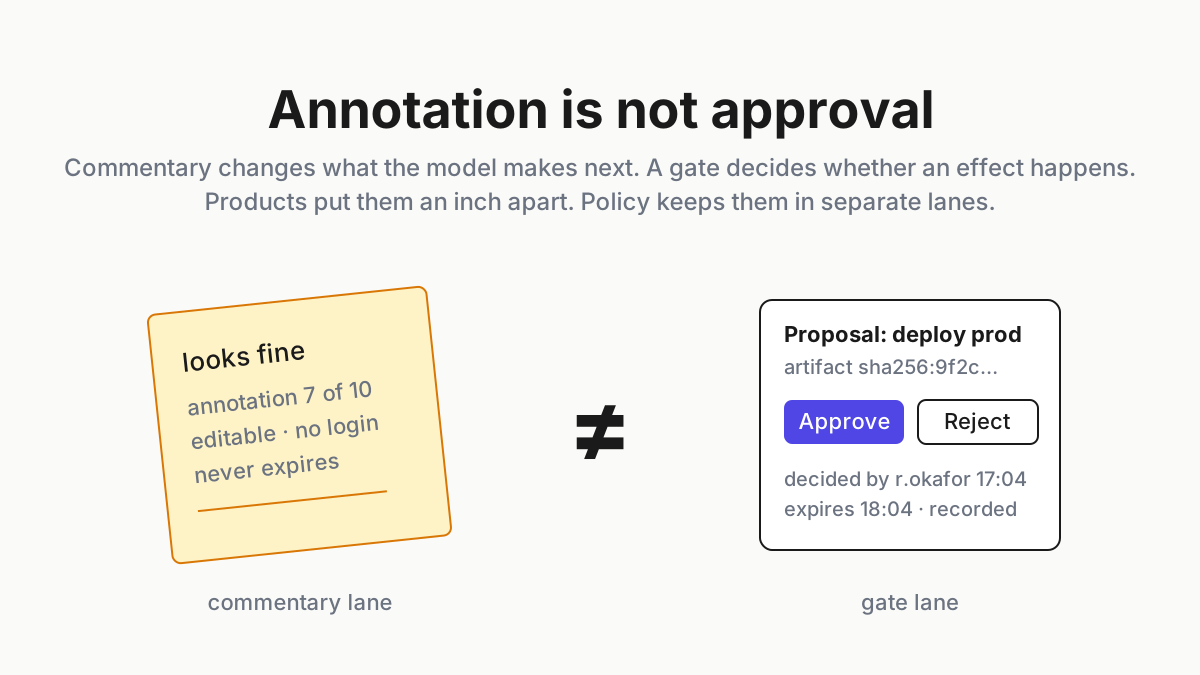
Outside the widget is the load-bearing phrase. A dashboard has an Annotate mode for feedback and a toggle for the bound task; neither is an approval, and the annotation piece exists because a note reading looks fine keeps getting mistaken for one. For a scheduled deploy, use two rows: an unattended task that builds and stages into the working directory and writes its run record, and a separate interactive step in which a person reads the staged output and runs the deploy. The version where the schedule deploys and a person checks the dashboard afterwards is the blast radius from above with a nicer name.
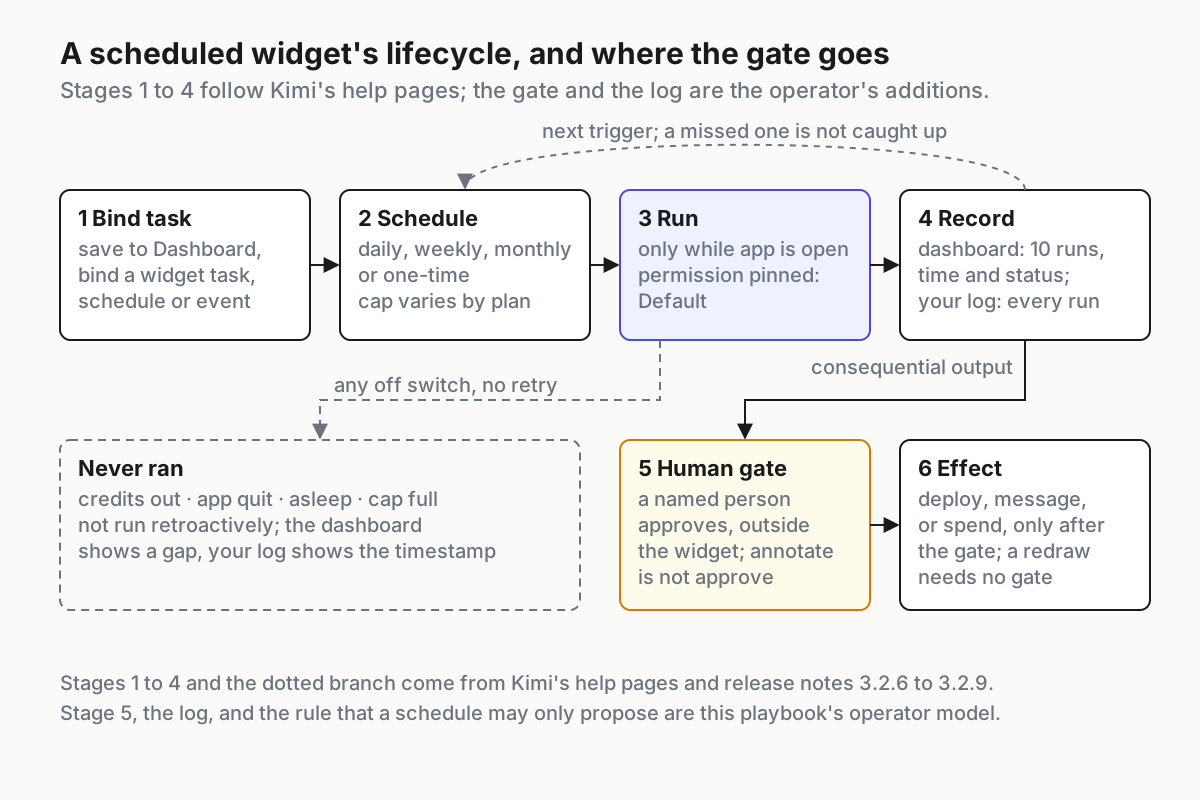 Six stages and one gate. The dotted branch gathers the off switches Kimi’s own pages name; a missed trigger is not run retroactively.
Step 6: credits, quit and sleep are failure modes, so write the policy down
A desktop cron job has three off switches a server cron job lacks, and Kimi’s notes name all three.
Credits. Until 3.2.7 the scheduled tasks page could freeze when credits ran out. The freeze is fixed, but the docs do not say what a task does at zero credits, so assume it does not run, and the ten-run list is where you find out, later. Set a floor alert in the inventory and check the balance on the cadence of the most frequent task. No page publishes a credit cost per run, so the floor comes from your own log.
Quit. Since 3.2.6 the app asks before quitting with a running task. That dialog is answered by whoever is at the keyboard at 17:58, usually the person least interested in it. Decide the answer in advance: on unattended-tier machines, wait for the run to finish and record the quit. The FAQ’s “only execute while the app is open” makes that dialog part of your schedule.
Sleep. Missed triggers are “not run retroactively”, so a closed lid is a skipped job, silently. 3.2.8 (2026-09-12) turned anti-sleep into three options and 3.2.9 added Keep Awake After Screen Off (release notes). Make it a fleet setting rather than a per-user choice: every unattended-tier machine runs with Keep Awake on, on mains power, and the setting is part of the weekly diff. AutoClaw’s July wake-lock line is the same control under another name; the tray-side view of agents that go quiet is in stall flags and keepalive.
A fourth switch hides in the widget docs: “There is a limit on how many widget tasks can run at the same time, and it varies by plan. When you reach the limit, pause some tasks from the Dashboard page before creating new ones.” (Kimi Work widgets). The number is not published. Find yours by counting and put it in the inventory.
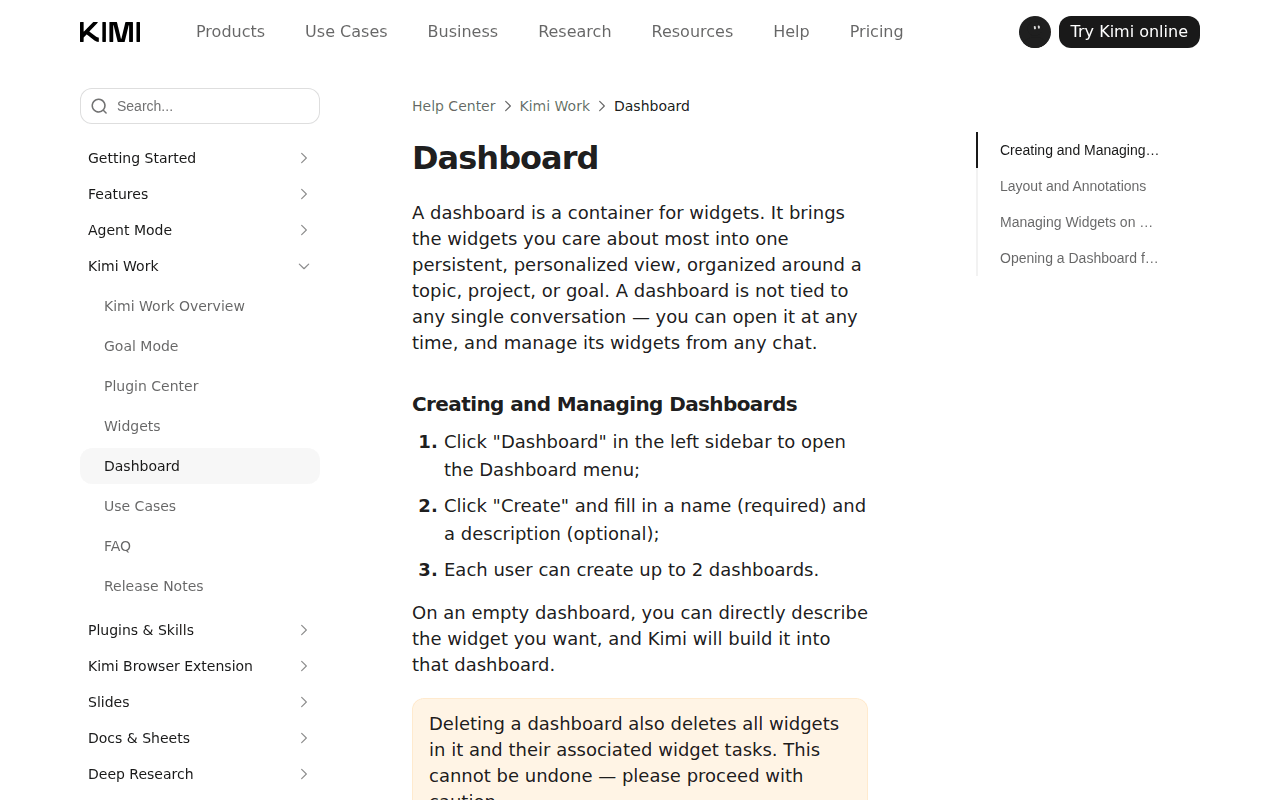 Screenshot: kimi.ai, “Kimi Work Dashboard - Kimi Help Center” (undated), captured Sep 19, 2026.
The warning box on that page belongs in the policy too: “Deleting a dashboard also deletes all widgets in it and their associated widget tasks. This cannot be undone — please proceed with caution.” A dashboard delete is a bulk task delete.
Six failure signals for Kimi Work scheduled tasks
- A gap in the ten-run list with no failure row. The run never started: asleep, quit, credits, or the concurrency cap. Your log has the timestamp; the dashboard does not.
prompts_raisedabove zero on an unattended row. The task reached outside its row. Pause it before anyone reads the widget.- A widget number changed with no run recorded. Someone clicked Refresh or edited the widget in chat; both need a line in the log.
- Fully automatic on any inventoried machine. Found by asking, weekly; the docs describe no way to detect it remotely.
- Keep Awake off on an unattended-tier machine, or the machine on battery. Missed triggers will follow, silently.
- A dashboard deleted. Every task bound to it went with it; reconcile the inventory the same day.
Widgets on schedules are fleet members; the fleet needs a place to say so
A live widget is a job with a schedule, a permission level, a plugin list and a credential surface, and nothing about it appears where your other unattended jobs are listed. Kimi keeps ten runs, the runner keeps a workflow log, the coordinator keeps its events, and the operator asking what ran unattended last night has three tabs and a spreadsheet.
The desk-level operating layer is where that list lives: one inventory of unattended work whichever app scheduled it, one log line per run, one tier column, one weekly diff. A restricted-mode fleet policy is where the unattended row becomes a default rather than a per-user choice, and a multi-agent command center is where the question of which widget rewrote a number at 07:00 becomes a lookup rather than a reconstruction. The vendor gives you a schedule. Deciding what a schedule may do is yours.
FAQ: Kimi Work scheduled tasks
Do Kimi Work scheduled tasks run when the computer is asleep or the app is closed?
No. The FAQ states that scheduled tasks run locally, only execute while the app is open, and that triggers missed while the computer is asleep, shut down, or the app is closed are not run retroactively. Keep the machine and app running, use the Keep Awake option, and log the gaps.
Should a scheduled desktop widget ever run under Fully automatic permission?
Not on a machine with work data or credentials. Kimi’s own FAQ says the level can overwrite files and change system configuration, and describes the user as bearing the results. For an unattended schedule, pin Default, allowlist plugins per task, and let a run stall on a prompt rather than switch it to Fully automatic.
Sources
- Kimi Help Center, Kimi Work FAQ (scheduled tasks; permission levels)
- Kimi Help Center, Kimi Work Widgets (widget task, live widget, concurrency limit)
- Kimi Help Center, Kimi Work Dashboard (10 most recent runs, dashboard limits, delete warning)
- Kimi Help Center, Kimi Work release notes (3.2.0, 3.2.2, 3.2.6, 3.2.7, 3.2.8, 3.2.9)
- Kimi Help Center, Kimi Work overview (launch Jun 3, 2026; sidebar)
- Kimi, “Kimi Work Dashboard: One Desktop Page for Everything You Care About” (updated 2026-09-11)
- AutoClaw changelog (v1.11.0 wake-lock, v1.16.2 scheduled task reliability)
- @Kimi_Moonshot on X, live investor dashboard tutorial (Aug 19, 2026)